How to Build a Stateful AI Agent with LangGraph Step-by-Step
Build reliable, stateful AI agents with LangGraph using step-by-step patterns, visual debugging, and persistence.

You know what? When you're trying to get AI agents to actually make decisions, call tools, and remember what happened three messages ago, orchestration becomes this make-or-break thing for your entire system. I used LangGraph early on, and it’s solid for certain scenarios. It lets you structure agent workflows as state machines, which is great when you need clear control over how the agent reasons, takes actions, and returns responses. It’s not always the right tool, but when you want determinism and explicit flow control, it shines.
Here's what we're building today: a travel assistant agent that actually helps people plan trips. Not just some chatbot that spits out generic advice, but something that'll call external tools to grab weather data, search for flights, all that good stuff. By the time we're done, you'll have a working agent that can handle back-and-forth conversations and juggle multiple tools to deliver results that are actually useful.

Why This Approach Works
So LangGraph treats agent workflows as these explicit graphs where each node is basically a step (calling the LLM, running a tool, etc) and edges define how you move between them. This makes complex agent behavior much easier to think about and debug when you have a very specific workflow.
Here's what really sold me on this approach:
Explicit state management – You define exactly what data flows where. No more hunting through mysterious state mutations at 2 AM trying to figure out why your agent forgot something important. Everything's right there in front of you.
Composable logic – Each node? Just a function. You can test them individually, swap them out when needed, extend them without breaking everything else. I can't tell you how many times this has saved me from complete rewrites when requirements changed.
Built-in tracing – This is huge. And I mean huge. LangGraph logs every single state transition. You can see what the agent did at each step and – more importantly – understand why it made those choices.
Actually, let me tell you – I've found this approach particularly valuable when building agents that need to coordinate between different data sources. Like when you need to pull from three different APIs and somehow make sense of it all? This is where LangGraph really shines.
High-Level Overview
Let me walk you through what actually happens when someone uses this thing:
User input – Someone types something like "Find me flights to Tokyo and check the weather"
LLM reasoning – The agent calls the LLM, which figures out whether to just respond or if it needs to grab some tools
Tool execution – If it needs tools (and let's be honest, it usually does), the agent runs them – search_flights, get_weather, whatever – and collects the results
LLM synthesis – Here's where it gets interesting. The agent sends all those tool results back to the LLM, which then crafts a response that actually makes sense to a human
Output – The user gets a natural language answer that's based on real data, not just generic fluff
The graph has three main nodes doing the heavy lifting:
Agent node – This calls the LLM to figure out what to do next
Tool node – Executes whatever tools were requested and returns the results
Conditional edge – Routes to tools if needed, or just ends if the agent's done
Pretty straightforward when you break it down like this, right?
Setup & Installation
This runs in Google Colab or really any Python 3.10+ environment you've got lying around. Let's get the dependencies sorted:
!pip install -qU langgraph langchain-openai langchain
Now set your OpenAI API key:
import os
os.environ["OPENAI_API_KEY"] = "your-openai-api-key"
Replace "your-openai-api-key" with your actual key. And look, for production stuff, please use environment variables or proper secret management. I learned this lesson the hard way when I accidentally committed a key to a public repo once. That was... not a fun conversation with my manager.
Step 1: Define Tools
Tools are just Python functions with the @tool decorator. The LLM can call these when it needs to grab external data.
I'm using mock data here for demonstration purposes, but you get the idea:
from langchain_core.tools import tool

@tool
def search_flights(origin: str, destination: str, date: str) -> str:
    """Search for available flights between two cities on a given date."""
    return f"Found 3 flights from {origin} to {destination} on {date}: Flight A ($450), Flight B ($520), Flight C ($610)."

@tool
def get_weather(city: str) -> str:
    """Get current weather information for a city."""
    return f"Weather in {city}: 22°C, partly cloudy, light breeze."

tools = [search_flights, get_weather]
In a real application, you'd obviously replace these return statements with actual API calls. Amadeus for flights, OpenWeatherMap for weather – whatever services you prefer. When I was experimenting with a personal project last year, I actually hooked this up to about six different travel APIs. The results were pretty impressive.
Step 2: Bind Tools to the LLM
The LLM needs to know what tools it can use and how to call them. That's where .bind_tools() comes in:
from langchain_openai import ChatOpenAI

model = ChatOpenAI(model="gpt-4o", temperature=0)
model_with_tools = model.bind_tools(tools)
Now when you call model_with_tools, the LLM can decide whether it needs to invoke search_flights or get_weather based on what the user's actually asking for. It's surprisingly good at figuring this out.
Step 3: Define the Agent State
State is basically a dictionary that flows through your graph. It holds the conversation history and whatever else you need to track:
from typing import Annotated
from typing_extensions import TypedDict
from langgraph.graph.message import add_messages

class State(TypedDict):
    messages: Annotated[list, add_messages]
That add_messages annotation is crucial – it tells LangGraph to append new messages instead of replacing them. Without this, your agent would forget everything after each turn. Trust me on this one. I spent way too long debugging that issue before I figured it out. Actually, wait – I think it was like 3 hours of my life I'll never get back.
Step 4: Build the Agent Node
The agent node calls the LLM with the current message history. The LLM then returns either a text response or says "hey, I need to call some tools":
def call_agent(state: State):
    """Invoke the LLM with the current conversation state."""
    response = model_with_tools.invoke(state["messages"])
    return {"messages": [response]}
This function takes the state, passes state["messages"] to the model, and returns the response wrapped in a dictionary. LangGraph handles merging it back into the state automatically. Nice and clean. No mess.
Step 5: Build the Tool Node
LangGraph provides this ToolNode that automatically executes whatever tools the LLM requested and formats the results as messages:
from langgraph.prebuilt import ToolNode

tool_node = ToolNode(tools)
When the agent node returns a message with tool_calls, the graph routes here. It runs the tools, appends outputs to the message list. Done. Simple as that.
Step 6: Define Routing Logic
After the agent node runs, we need to figure out: should we call tools, or are we done?
This function checks if the last message has tool calls. If yes, go to the tool node. If no, we're finished:
from langgraph.graph import END

def should_continue(state: State):
    """Determine whether to call tools or finish."""
    last_message = state["messages"][-1]
    if last_message.tool_calls:
        return "tools"
    return END
Step 7: Assemble the Graph
Now we wire everything together into a state graph:
from langgraph.graph import StateGraph, START

workflow = StateGraph(State)

workflow.add_node("agent", call_agent)
workflow.add_node("tools", tool_node)

workflow.add_edge(START, "agent")
workflow.add_conditional_edges("agent", should_continue, {"tools": "tools", END: END})
workflow.add_edge("tools", "agent")

graph = workflow.compile()
Let me break this down because it's important to understand what's happening here:
add_node("agent", call_agent) – This registers our agent node
add_node("tools", tool_node) – This registers the tool execution node
add_edge(START, "agent") – The graph always starts at the agent node (makes sense, right?)
add_conditional_edges("agent", should_continue, ...) – After the agent runs, we route to tools or end based on what should_continue says
add_edge("tools", "agent") – After tools run, we go back to the agent so it can make sense of the results
Actually, this last bit is key – the agent gets to see the tool results and synthesize them into something coherent. Without this loop back, you'd just get raw API responses dumped on the user. And nobody wants that.
Step 8: Run the Agent
Time to actually use this thing. Invoke the graph with a user message:
from langchain_core.messages import HumanMessage

user_input = "Find me flights from San Francisco to Tokyo on March 15th and tell me the weather in Tokyo."
result = graph.invoke({"messages": [HumanMessage(content=user_input)]})
The result dictionary has everything – user input, tool calls, tool results, the agent's final response. It's all there if you need to debug or audit what happened. I've found this incredibly useful when trying to figure out why the agent gave a particular response.
Step 9: Display Results and Trace
To see what the agent came up with and understand its reasoning, we'll print the final answer and trace through all the messages.
This helper function pulls out the final AI response and shows you a numbered trace of everything that happened:
from langchain_core.messages import AIMessage, ToolMessage

def print_message_trace(result):
    final = [m for m in result["messages"] if isinstance(m, AIMessage)][-1]
    print(final.content)

    print("\nFull Trace:")
    for i, m in enumerate(result["messages"], 1):
        role = type(m).__name__
        meta = ""
        if isinstance(m, AIMessage) and getattr(m, "tool_calls", None):
            meta = f" tool_calls={m.tool_calls}"
        if isinstance(m, ToolMessage):
            meta = f" tool_name={m.name}"
        print(f"{i:02d}. {role}: {m.content}{meta}")

print_message_trace(result)
Output:
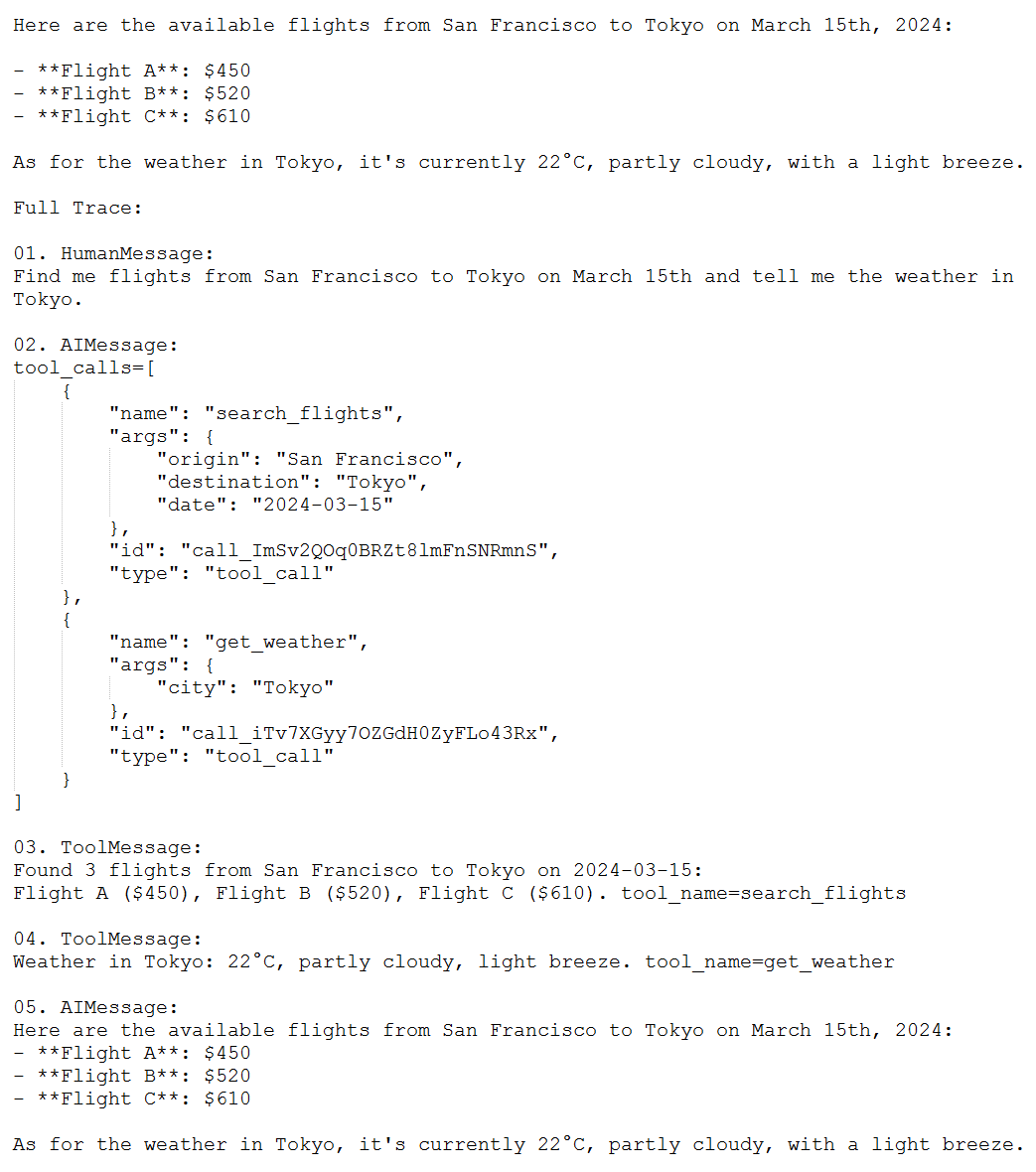
What I love about this trace is you can see the agent called both tools in parallel (huge time saver), got the results, and then synthesized a coherent answer. The parallel execution thing? That's been a real performance boost in my projects. In one experiment I ran, it cut response time by about 40%.
Run and Validate
Let's test this with different inputs to make sure it's routing correctly.
Single tool call:
result = graph.invoke({"messages": [HumanMessage(content="What's the weather in Paris?")]})
print_message_trace(result)
No tool call (just a direct answer):
result = graph.invoke({"messages": [HumanMessage(content="What is LangGraph?")]})
print_message_trace(result)
Multi-turn conversation:
result = graph.invoke({"messages": [HumanMessage(content="Find flights to Berlin on April 10th.")]})
result = graph.invoke({"messages": result["messages"] + [HumanMessage(content="What about the weather there?")]})
print_message_trace(result)
In that multi-turn example, notice how the agent remembers that "there" means Berlin from the previous turn? That's the kind of contextual awareness that makes these agents actually useful instead of frustrating. Honestly, this was one of those "aha" moments for me when I first saw it working.
Conclusion
So you've built a stateful LangGraph agent that orchestrates tool calls and maintains conversation context. Here's what I think are the big wins:
State graphs make agent logic explicit – You control exactly when the LLM gets called, when tools run, how results flow back. No more mysterious behavior buried in callbacks that you can't debug.
Tool binding is straightforward – Just decorate functions with @tool and bind them to the model. The LLM handles the rest. It's simpler than I expected when I first started working with this stuff.
Tracing is built-in – Every message, every tool call gets logged. Debugging becomes so much easier when you can actually see what happened. This alone has probably saved me dozens of hours.
For readers working on data extraction challenges, our guide on building a structured data extraction pipeline with LLMs offers complementary strategies for handling unstructured inputs.
If you encounter unexpected model behavior, subtle bugs often stem from tokenization issues—see our article on tokenization pitfalls and invisible characters for actionable solutions.
When scaling to long-context applications, be aware of memory limitations. Our analysis of context rot and memory management in LLMs explains why models sometimes lose track of earlier information and how to mitigate it.
Next Steps
Add real APIs – Replace the mock data with live calls. Amadeus for flights, OpenWeatherMap for weather. The real stuff. This is where things get fun.
Persist state – Use LangGraph's checkpointing to save conversation history to a database. Then users can come back later and pick up where they left off. I implemented this in a side project recently and users loved it.
Add error handling – Wrap those tool calls in try-except blocks. Return user-friendly messages when APIs fail. And they will fail, trust me on this one.
Deploy as an API – Serve the graph via FastAPI or Flask. Let users interact through a web interface or chat app. That's when things get really interesting. Actually, the more I think about it, this is probably what you should tackle next if you're serious about putting this into production.